How to make any smartphone easier to use for a senior citizen
Popular Science...
If you didn’t grow up with smartphones and tablets, then the touchscreen inputs, busy interfaces, and multiple apps can quickly become overwhelming. If you have parents or grandparents who struggle with the default, out-of-the-box experience offered by iOS or Android, then that’s understandable.
It’s something that Apple and Google understand too, and modern day phones come with a variety of settings and features to make these smartphones easier to use for senior citizens.
Apple iPhone

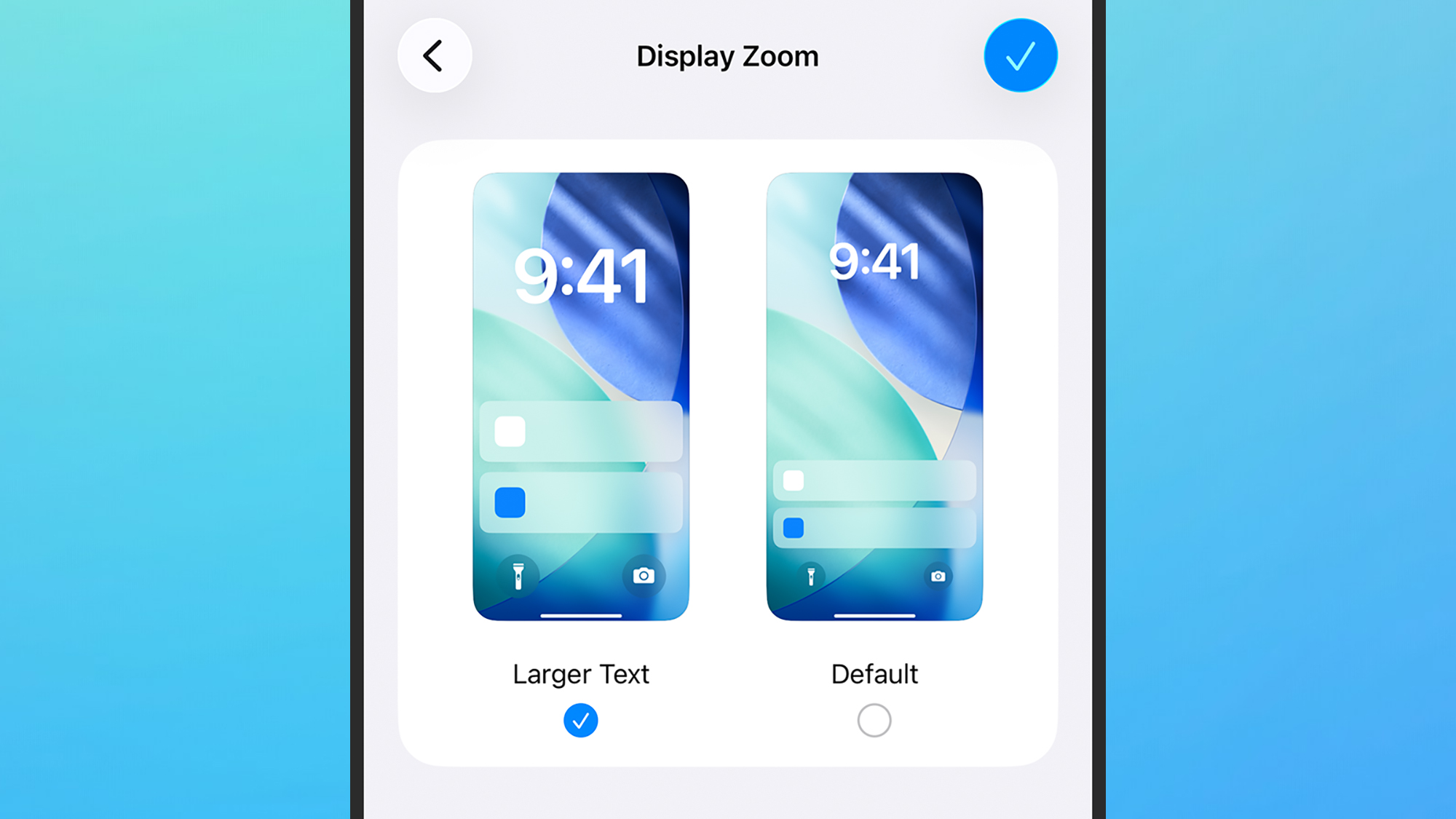
On a basic level, you can adjust the legibility of text in iOS by opening Settings and choosing Display & Brightness: Use Text Size to make the text larger, and Bold Text to make it even more visible on display. To make other on-screen elements larger, choose Display Zoom and Larger Text from the Display & Brightness menu.
Some handy tools are available in Accessibility in Settings. There’s VoiceOver, for example, which will read out text on screen (making it easier to get around menus and other screens). There’s also Zoom, which provides an on-screen magnifier for taking a closer look at icons or text that might otherwise be difficult to read.
You can use the Touch setting to change the sensitivity of the touchscreen, Hearing Devices to connect a compatible hearing aid, and Subtitles & Captioning to show captions for compatible content. Under Voice Control, you can configure the iPhone to respond to voice commands—see Apple’s full guide for details of how it works.
To go further, open Settings and pick Accessibility > Assistive Access > Set Up Assistive Access. Assistive Access makes the text in iOS bigger, but also introduces a simpler layout for menus and the main home screen. Buttons are significantly larger and easier to hit, and some apps will have a reduced set of options.
During setup you’ll be asked to set a passcode specifically for Assistive Access, which is then used to quit the mode—by triple-pressing the side button and then entering the passcode, iOS can be returned to normal. The passcode means that an elderly user is less likely to find themselves suddenly back in the regular iOS interface.
Google Pixel
If you’re trying to adapt a Google Pixel phone, the obvious place to start is with the size of text and other items on screen. To adjust this, open up Settings then choose Display and touch > Display size and text. There are a couple of sliders you can experiment with (with the changes immediately previewed), and you can set text to be bold and outlined as well.
A couple more settings on the Display size and text menu that might be useful: Color contrast, which can make on-screen elements easier to pick out, and Navigation mode, which lets you switch to a traditional three-button navigation layout for Android rather than the gesture-based option (which is a little harder to operate).
There’s more under the Accessibility menu in Settings. The options here include TalkBack (for reading out text on screen), Magnification (for zooming in on specific areas of the display), and Hearing devices (for connecting up hearing aids). There’s Timing controls too, for changing how long the Pixel waits for a touch-and-hold action.
Under Live Caption you can have subtitles automatically appear for video and audio, while Sound Amplifier can give the audio coming from the device a boost. With Voice Access, you’re able to set up the phone so that it can be used entirely via voice commands—Google has a full guide you can refer to.
Lastly on the Accessibility menu, look for Simple View. When you enable this feature via the toggle switch, the Pixel software adopts a more basic layout, with larger text and icons, simplified navigation, and higher screen touch sensitivity. Go back to the same menu to turn Simple View off and revert to the original look.
Samsung Galaxy
Android phones tend to work slightly differently depending on the model and manufacturer, and this extends to the settings for making a phone more accessible for an elderly person. While Samsung Galaxy phones are similar to Google Pixel phones in many ways, there are also some differences.
Galaxy phones don’t have a Simple View, but they do have Easy Mode. From Settings, choose Display, then pick Easy Mode. Text and other elements on screen will be made larger, the interface will be simplified to some extent, and a touch-and-hold delay is applied. You can turn Easy Mode off again from the same screen.
You can make more minor tweaks instead of using Easy Mode. Under Display in Settings, for example, there’s a Font size and style menu that lets you change the size of text and apply a bold style to it across the operating system. The Screen zoom option, meanwhile, can be used to adjust the size of menus, graphics, and icons, while Navigation mode lets you swap between gestures and buttons for navigating.
Head to the Accessibility menu from Settings and there are a host of other options to tweak. You can use Vision enhancements to increase the display contrast and make items easier to pick out, and Hearing enhancements to get on-screen captions for content and to connect hearing aids.
Use TalkBack to have text and menus on screen read out to you, and Interaction and dexterity > Voice Access to enable full voice control for the Galaxy phone. Check out the full guide from Samsung for details of how to set this up, and how to use commands to do everything from web searches to app launches.
The post How to make any smartphone easier to use for a senior citizen appeared first on Popular Science.